ScanXm
ScanXm is a standalone desktop application for processing, segmenting and visualizing biomedical images. It is developed with a focus on research and development in academic and industrial settings. ScanXm supports a wide range of image and video formats, and provides comprehensive tools for manual and automatic segmentation.
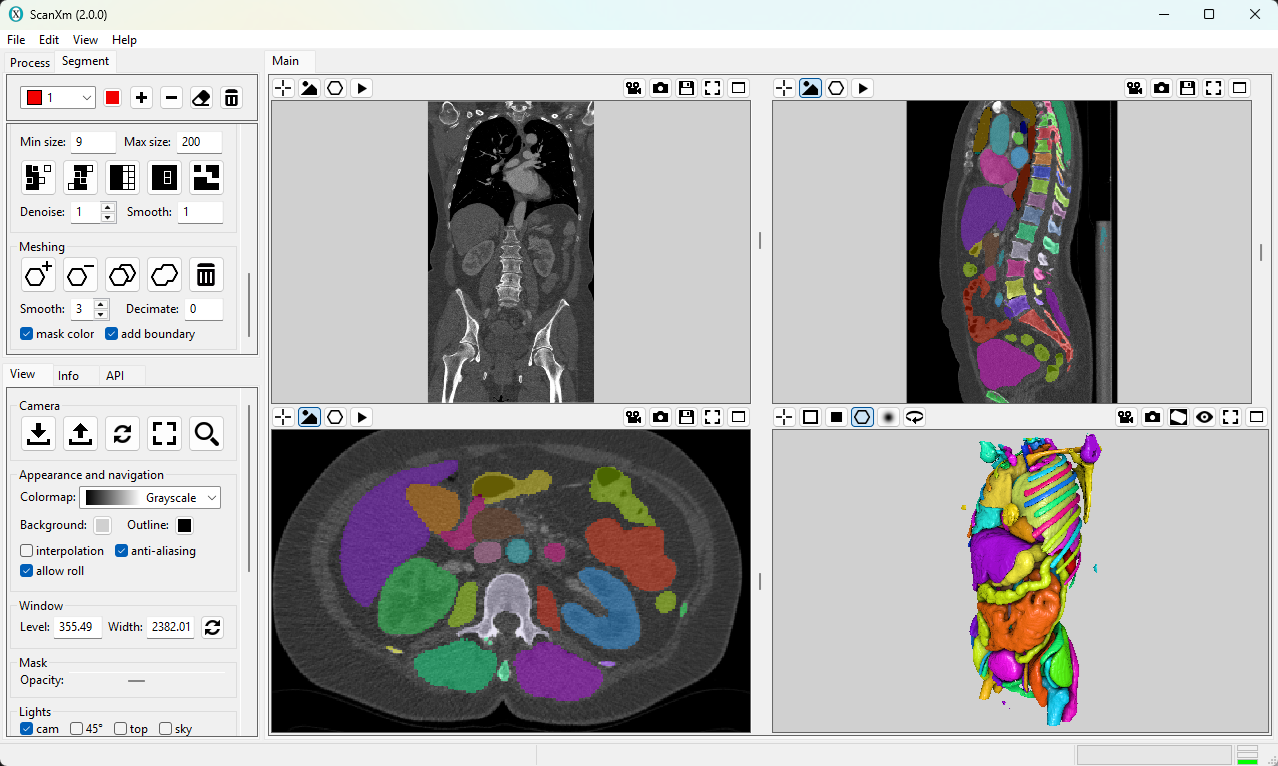
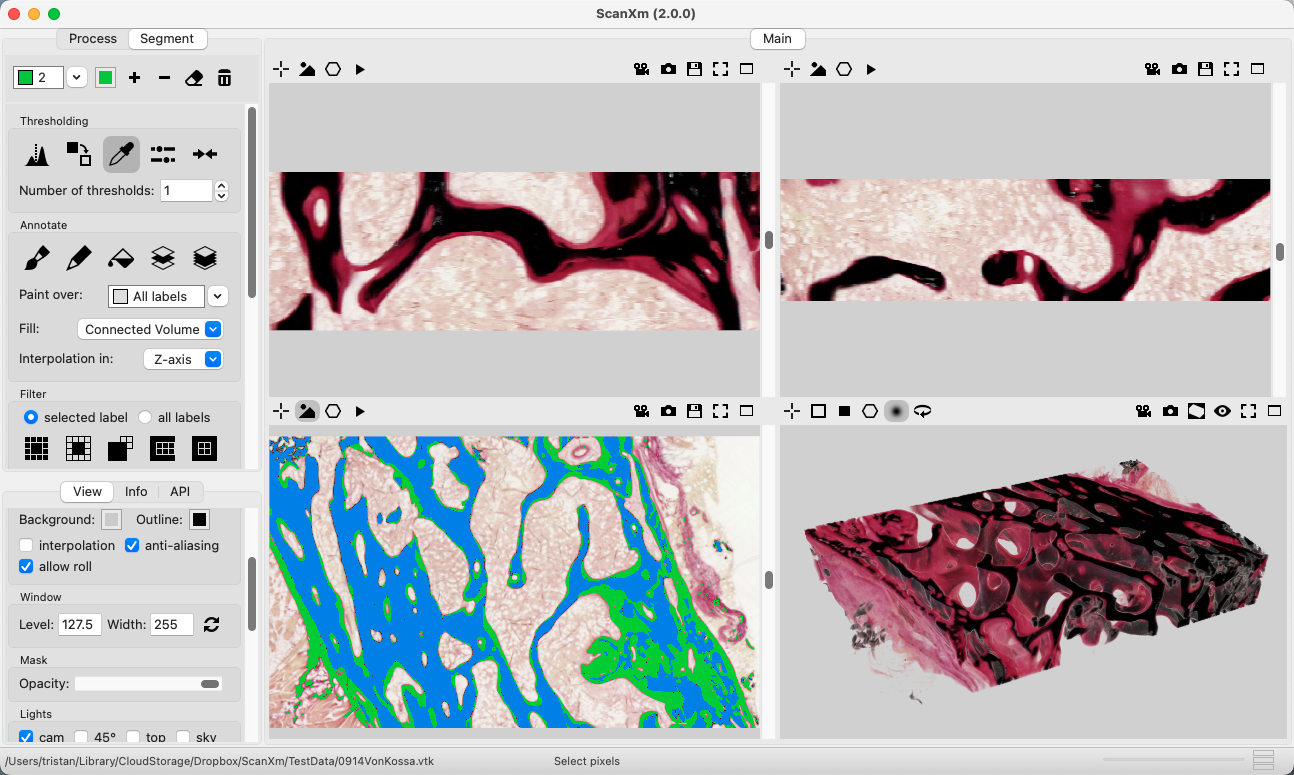
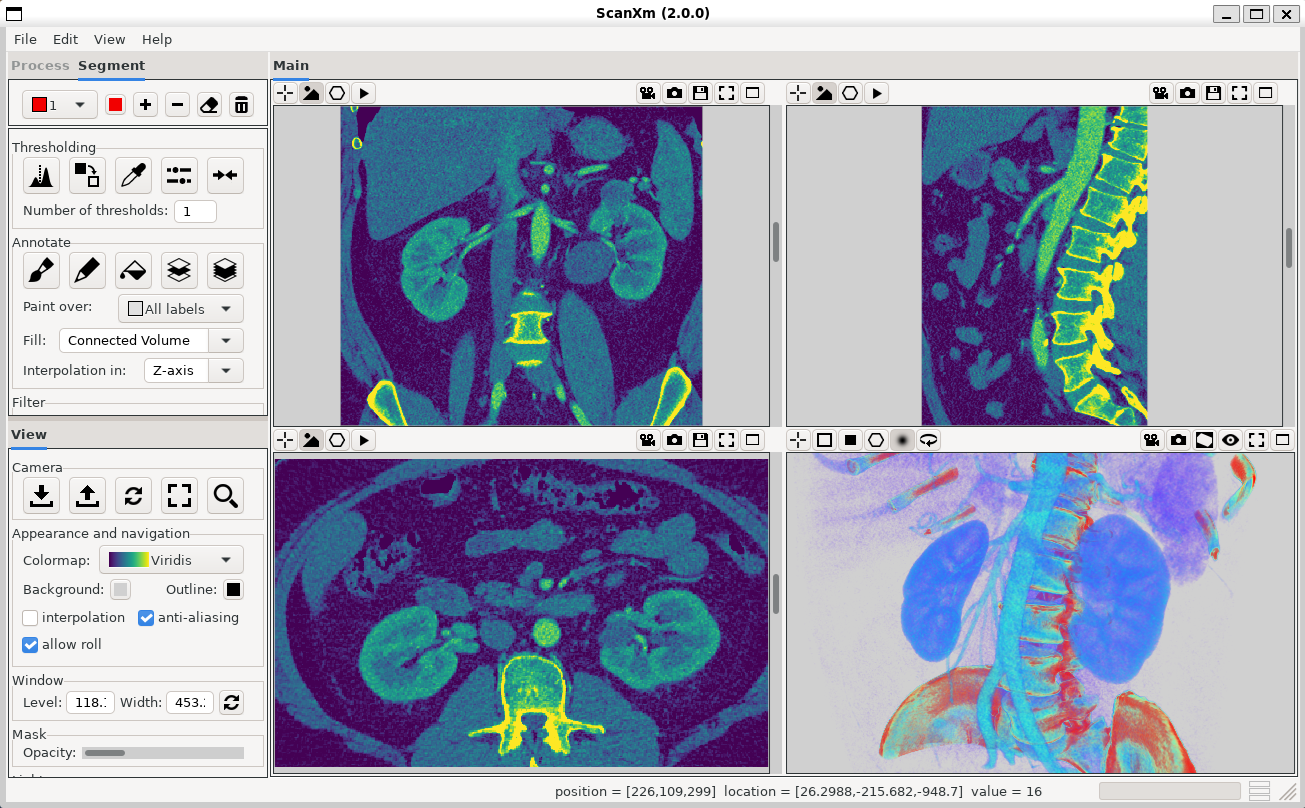
Features
- Supported data types: 2D and 3D, scalar or RGB
- DICOM read and write
- Supported image file formats: vtk, mha, mhd, nii, nrrd, nhdr, tif/tiff, bmp, jpg/jpeg, png, svs, vms, vmu, ndpi, scn, mrxs, svslide
- Supported video file formats: avi, mp4, mpeg, mpg, wmv, mov
- Supported surface mesh file formats: vtp, stl, ply, wrl, obj
Download ScanXm

Version: 2.0.2 (Release Notes)
Published: July 14, 2026
By downloading, installing, or using ScanXm, you agree to the License Agreement.
 Download for Windows
Windows 64-bit MSI Installer (40 MB)
Tested on Windows 10 and 11
1. Run the MSI installer:
Double-click the downloaded
ScanXm-2.0.0.msi file.
2. SmartScreen Warning:
Because ScanXm is released by an
independent
developer, Windows may display a "Windows protected your PC"
warning.
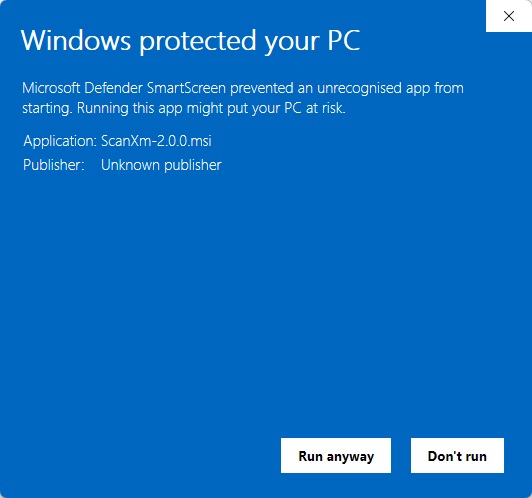
3. Bypass Warning:
Click on "More info" and
then
click the "Run anyway" button to proceed with the installation.
4. Follow Setup:
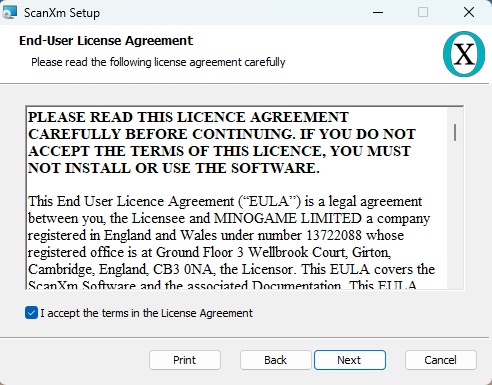
Complete the installation wizard. You
will need to agree to the license agreement.
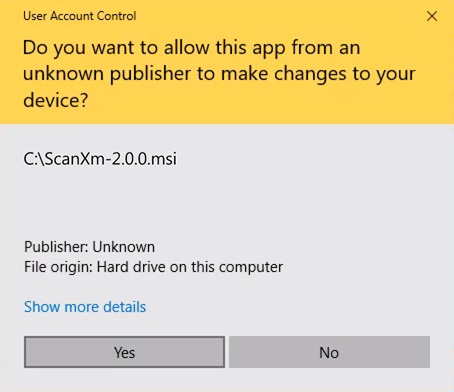
During the process, you may also be asked if you want to allow this app from an unknown publisher to make changes to your device; select "Yes".
Once finished, ScanXm will be available in your Start menu and as a shortcut on your desktop.
Uninstallation:
Go to Settings > Apps > Installed Apps (or Control Panel > Programs), find ScanXm, and select Uninstall.
 Download for macOS
macOS Apple Silicon DMG (41 MB)
Tested on Apple M4 with Sequoia 15.3.2
1. Open DMG:
Double-click the downloaded ScanXm-2.0.0.dmg file to mount it.
2. Install:
Drag the ScanXm icon into your
Applications folder.
3. First Run:
If you receive a warning about an "unidentified
developer," right-click (or Control-click) the ScanXm app in your Applications
folder and select Open, then click Open again in
the dialog.
Uninstallation:
Drag the ScanXm application from your Applications folder to the Trash.
 Download for Linux
Linux 64-bit tar.gz (125 MB)
Tested on Ubuntu 20.04.6 and Mint 22.3
1. Extract the tarball:
tar -xzf ScanXm-2.0.0.tar.gz
2. Run the installer:
Enter the extracted directory and run the install script by
double-clicking install.sh (or running it from the
terminal).
3. Launching:
The installer will create a desktop icon. You can also run the
application directly
by executing bin/ScanXm.
Uninstallation:
Run the uninstall.sh script (via double-click or terminal) from
the
application folder to remove ScanXm and its desktop shortcut.
Disclaimer
ScanXm is not a medical device and should not be used for diagnosis or treatment planning.